How to Add an Ultra Mobile PayGo eSIM to an iPhone, From QR Code to Text Test
Hi, I’m Little Lark. Today, let’s keep talking about overseas SIMs 😊
On this page
1. How to Add an Ultra Mobile PayGo eSIM to an iPhone, From QR Code to Text Test
If your PayGo eSIM QR code has arrived, check your iPhone before scanning it. Installation adds the carrier profile to the phone. The number also needs to be active, and receiving texts in mainland China depends on the appropriate Wi-Fi Calling setup.
This guide is for an iPhone that can install the eSIM directly. A mainland-China iPhone using an XeSIM X7 follows the separate X7 guide.
2. Four Checks Before Scanning
Open Settings, General, About and find the EID. Confirm the exact model and sales region. Apple's broad eSIM compatibility guidance begins with iPhone XS, XS Max, XR, and later, but mainland-China models have separate rules. In the same About screen, check Carrier Lock. “No SIM restrictions” indicates an unlocked device.
Connect to stable Wi-Fi and open the QR code from your own order email on a computer or second device. If the code is in an email or browser on the same iPhone, Apple says iOS 17.4 or later may offer Add eSIM when you touch and hold the QR image. Follow the option actually shown on the device.
LarkSIM's current product page says support activates the PayGo number and funds the first month before sending the installation code. If your email has not arrived, check spam and the order status first. Do not try another customer's code.
3. Add the QR Code to Your iPhone
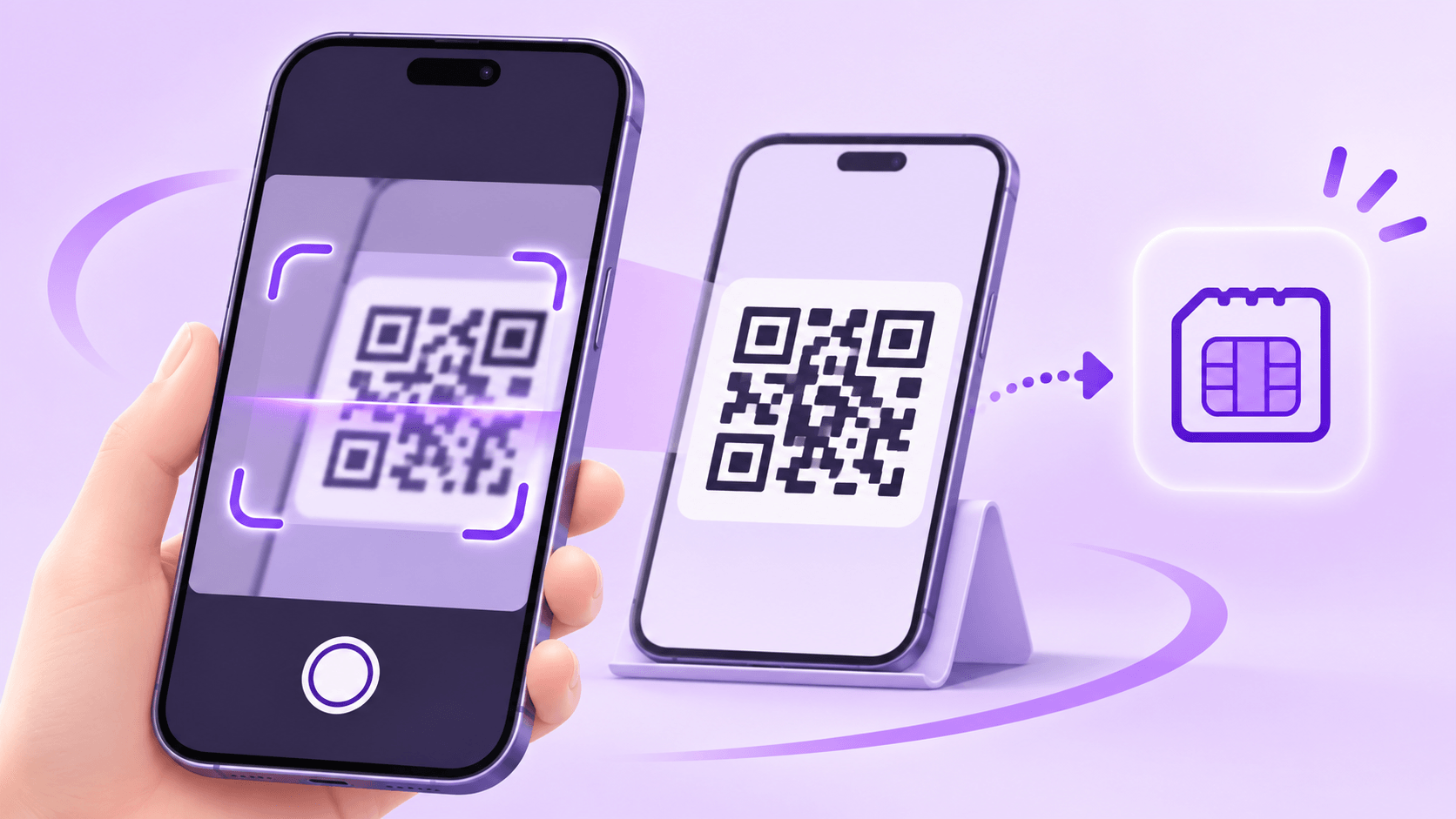
1. Open Settings, then Cellular or Mobile Data. Keep your existing domestic line in place.
2. Select Add eSIM and Use QR Code. Screen labels differ by iOS language and version.
3. Scan the carrier code, confirm that you are adding a new line, and keep the phone online until installation finishes.
4. Give the line a clear label such as US number. Set your domestic SIM as the normal mobile-data line if you are using the phone in mainland China.
5. Return to Cellular settings and verify that the new line appears and is turned on. Keep the installed eSIM in place while you check activation.
During first-time iPhone setup, the system may also offer a QR-code path at the cellular setup screen. The end check is the same: your own US line should appear in Settings. “Transfer From Nearby iPhone” is a carrier-dependent feature and should not be assumed to work for an emailed PayGo QR code.
If the iPhone is still in the new-device setup flow, use the carrier QR option there; on an already configured phone, use Settings. After labeling the US line, review iMessage, FaceTime, default voice, and default mobile data, keeping the domestic main number where you normally use it.
If the scan fails, check the full QR image, Wi-Fi, and software status. An “already used” or “unable to add” message is a reason to stop repeated attempts and contact the issuer with a screenshot. Manual SM-DP+ entry is useful only if the carrier supplied valid manual details.
4. Check Whether the Number Works in Mainland China
The PayGo eSIM product page describes Wi-Fi Calling as the route for receiving messages in mainland China, where local cellular data is unavailable. Connect to Wi-Fi, open the US line's settings, and enable Wi-Fi Calling if your device and carrier present that option. Provide a valid emergency address if required by the carrier.
Check that Wi-Fi Calling registers, then send a regular text from a different phone to the US number. A regular text separates line setup from a particular platform's verification rules. If a normal text arrives but an app's code does not, inspect the app's error and sending limits before reinstalling the eSIM.
Do not judge the line from signal bars alone in mainland China. Check whether Wi-Fi Calling is registered, test an ordinary SMS, and then request a code from the platform you need. If emergency address setup fails, verify the address with the carrier.
Review iMessage, FaceTime, default voice, and mobile-data line settings after installation. A second number does not need to become your default data line. Before using the phone abroad, review coverage and roaming charges separately.
5. Why Order Through LarkSIM?
On November 19, 2026, LarkSIM listed the Ultra Mobile PayGo eSIM at ¥389 and marked it out of stock. The price included assisted activation and the first $3 base month. Later base renewals are $3 every 30 days, or $36 over 12 further cycles, before extra usage. Decide whether to top up through the carrier or ask LarkSIM support for help, and record the next payment date. You can register for a stock notice or read the US number selection guide if you need a number now.
6. Where to Stop When Installation Gets Stuck
If Add eSIM is absent, check the exact model and sales region. If the phone is carrier locked, resolve that first. If the QR code is unreadable, display it on another screen and check Wi-Fi. If it says used or expired, save the error and ask the issuer whether a replacement is needed. A visible line with no texts calls for an activation and Wi-Fi Calling check before removal.
Before changing iPhones or selling the old one, ask the issuer how the eSIM can be transferred or replaced. Deleting the device profile does not cancel a recurring carrier plan. Keep the old phone working until the replacement phone can receive an ordinary text; carrier support for iPhone-to-iPhone transfer is not automatic for every emailed QR code. Once the US line is visible and a regular test text arrives, record the next renewal date. If the line is missing or ordinary texts fail, stop deleting and rescanning, and send support your order number and the exact error screen.
Real UK +44 number · Ships from China · Chinese setup guides
giffgaff UK physical SIM
Register and manage a real UK mobile number yourself, shipped from local stock in China. The self-service SIM suits people who already have a way to top up; the worry-free SIM includes an official £10 top-up voucher.