Can a China-market iPhone use the Ultra Mobile PayGo eSIM? How to use XeSIM X7 (2026)
Yes, thanks to a bit of clever hardware. A China-market iPhone cannot install the Ultra Mobile PayGo eSIM itself, but put an XeSIM X7 in the second SIM slot, scan the PayGo eSIM QR code in the X7 app, and the iPhone treats it as an ordinary physical SIM.
On this page
- 1. Count your iPhone's SIM slots
- 2. What the PayGo US number does
- 3. What XeSIM X7 is
- 4. Why buy the PayGo eSIM from LarkSIM
- 5. Write the PayGo eSIM into X7, step by step
- 6. Keep the wallet funded so the number stays
- 7. Three kinds of user
- 8. What to do now with your phone
- 9. China iPhone and PayGo eSIM FAQ
- 10. Related guides
Your Chinese number stays in the other slot. Both numbers stay on standby, and in China the US number receives texts and verification codes over Wi-Fi for $3 every 30 days.
This needs a phone with two SIM slots, and the order matters. The PayGo eSIM QR code usually installs only once and is not refundable after payment, so get X7 delivered and connected before ordering the eSIM.
PayGo rates follow the LarkSIM product page, checked against Ultra Mobile's site on 2026-11-06; the China iPhone slot list follows Apple Support pages read on 2026-11-18.
Count your iPhone's SIM slots
X7 is the size of a normal nano-SIM and takes one physical slot. Your Chinese number takes the other, so the phone needs two slots for both cards to stay in.
Not sure it is a China-market model? Go to Settings, General, About and look at Model Number. One ending in CH/A is a China-market phone; if you see a number starting with A, tap it to show the version with the region code.
Hong Kong and overseas models can usually install the PayGo eSIM directly and do not need X7, so checking first saves the cost of the card. Apple lists the dual nano-SIM models sold in mainland China, Hong Kong and Macao; for China-market phones it works out like this.
| Model | Slots | Can it use X7? |
|---|---|---|
| iPhone XS Max, XR, iPhone 11 to 16 series, iPhone 16e | Two nano-SIM | Yes, Chinese SIM in one, X7 in the other |
| iPhone 17, 17 Pro, 17 Pro Max | Two nano-SIM | Yes, same as above |
| iPhone 18 Pro, 18 Pro Max, iPhone 17e | Physical SIM and eSIM | Yes, X7 in the physical slot |
| iPhone Air, iPhone Duo | eSIM only, no slot | No, X7 will not fit |
The China-market iPhone 18 Pro, 18 Pro Max and 17e support eSIM, but only domestic carriers' eSIMs; in mainland China they cannot install an overseas carrier's eSIM, so they use X7 too.
Older China-market models not on the list, such as iPhone XS and iPhone SE, have one slot. Putting X7 in means taking the Chinese SIM out, so the two numbers cannot run together; the ENC physical SIM below is simpler for them.
The phone must not be carrier-locked. China-market iPhones have no carrier lock; locked phones using a SIM adapter will not work.
What the PayGo US number does
First, what goes on X7. PayGo is an Ultra Mobile plan on the T-Mobile network with a US +1 number. $3 every 30 days includes 100 minutes, 100 texts or MMS and 100MB of data.
| Item | Price | Notes |
|---|---|---|
| Monthly | $3 / 30 days | 100 minutes, 100 texts/MMS, 100MB |
| Extra calls | $0.03 / minute | Listening to voicemail counts |
| Extra texts/MMS | $0.01 each | Wi-Fi calling texts also use the 100 |
| Cellular roaming in China | Calls $3.59 / minute, texts sent $0.50, received $0.10 | Turn roaming off and use Wi-Fi calling |
| Data roaming | Not supported | No mobile data on this line in China |
Included minutes and texts reset every 30 days and do not roll over. In China it is mainly for codes, and 100 texts a month is plenty.
It can receive SMS codes from platforms such as Apple ID, ChatGPT and Telegram, and send and receive US texts and make US calls over Wi-Fi. As the product page says, whether a code arrives depends on the platform's rules and your network; no card guarantees every platform.
You cannot choose or change the number. Support assigns it by the US ZIP code used at activation, and the area code follows the ZIP; email after payment if you want a particular state. PayGo cannot switch to Ultra's other monthly plans; it is a low-cost way to keep a US number.
No ID is needed for activation, only a US ZIP code and an email; when you buy from LarkSIM, support handles both.
What XeSIM X7 is
X7 is a physical card with built-in Bluetooth and a chip that can hold eSIMs. The phone reads it as a normal SIM, and the XeSIM App writes eSIMs to it over Bluetooth and switches which one is active.
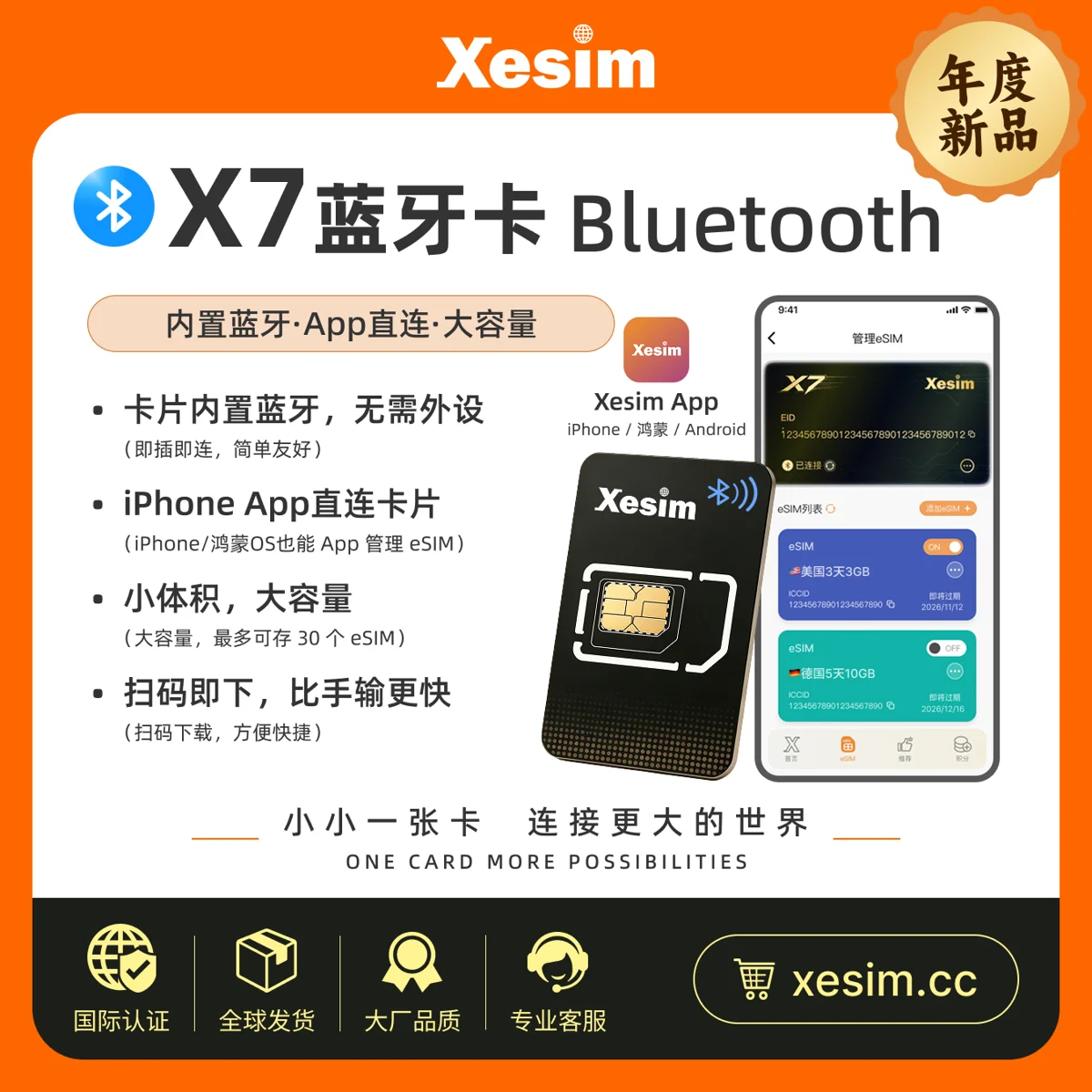
Cards like this used to need a card reader or a borrowed Android phone. With X7 inserted, you manage it from the app on the iPhone over Bluetooth, with nothing else.
There are four ways to add an eSIM: scan a QR code, import a QR from Photos, type an activation code, or enter a redemption code. The PayGo eSIM comes as a QR code, so use one of the first two.
A card stores up to 30 eSIMs, but only the one selected in the app works at any time. It cannot copy your physical SIM; what goes in must be an eSIM issued by a carrier. A phone that already takes eSIM can add it in Settings and does not need X7.
XeSIM sells X7, and orders, shipping, returns and support go through XeSIM. LarkSIM does not sell the card; the XeSIM X7 page carries a coupon code, and LarkSIM may earn a commission on purchases through it.
Why buy the PayGo eSIM from LarkSIM
Opening PayGo yourself on Ultra Mobile's site from abroad needs a US ZIP code and a card that pays in dollars, and activation can trip carrier fraud checks; a locked number is money wasted.
The LarkSIM PayGo eSIM price includes activation: support activates the line, funds the first $3, sorts out the hard parts and then sends you the QR code. That code belongs to a number that already works. You only write it into X7, with no account setup, no ID and nothing shipped.
Renewals work two ways: top up at my.ultramobile.com by card or with auto-refill, or email support for a top-up. No dollar card is needed to keep the number.
Write the PayGo eSIM into X7, step by step
Do it all on home Wi-Fi. Show the QR code on another screen, for example the email open on a computer; with only one phone, save the QR image to Photos and use the app's photo import.
- 1
Insert and connect
Put X7 in the second slot and keep the Chinese SIM in the first. Install the XeSIM App, turn on Bluetooth, and bind and connect the card as prompted. When the card shows connected, move on. - 2
Add the eSIM
Choose add eSIM, then scan or import the PayGo QR code. During the download do not lock the screen, switch apps or remove the card; a dropped connection can spoil the download. - 3
Label and enable
Name the eSIM, for example PayGo US, save it and switch it on in the list until it finishes enabling. - 4
Turn on the line
In Settings, Cellular, a new line appears. Turn it on and label it US. No Service in China is normal; the next step does the work. - 5
Turn on Wi-Fi Calling
Open the US line, turn on Wi-Fi Calling and enter a US emergency (E911) address. When Wi-Fi appears after the carrier name in the status bar, it is on. - 6
Turn roaming off
Turn off voice roaming on the US line, do not use it for cellular data, and keep data roaming off. Roaming in China costs $3.59 a minute and $0.50 per text sent. - 7
Send a test text
Text the US number from your Chinese number, or request a code to it. When it arrives, you are set up.
Keep the wallet funded so the number stays
X7 gets the line into the phone; how long you keep the number depends on the PayGo wallet. It pays $3 every 30 days and the line is suspended if it cannot. Sixty days after the last charge, the account and number are cancelled for good.
Some say 90 days online; go by the official 60 days on the product page. The safe approach is to keep several months of credit in the wallet.
There are three ways to top up: by credit or debit card at my.ultramobile.com; with auto-refill of $5, $10 or $20; or, without a dollar card, by emailing LarkSIM support.
Refill cards must be PayGo refill cards; cards for other Ultra plans do not work.
The wallet holds up to $150, in theory 50 cycles or over four years at $3, assuming rates stay the same, nothing else is charged and you do not roam. Still check the balance when you log in.
The easy option is to add about $20 and turn on auto-refill. If you would rather not save a card, put the support top-up date in your calendar and email a week ahead.
Three kinds of user
China-market iPhone 15, one US number
Two slots, one with the Chinese SIM and one empty, and a US number wanted for overseas accounts and Apple ID or ChatGPT codes, kept long term. Buy X7, then the PayGo eSIM, write it in and leave X7 in. Fund the wallet with about $20 and auto-refill, and leave it for six months.
Both slots already hold a Chinese SIM and giffgaff
giffgaff needs one paid use every six months to keep the number, so it need not stay in. Keep X7 in for US codes and swap giffgaff back every few months to send a paid text. To have both online every day, put one card in a second phone.
Changing phones in a couple of years
A PayGo eSIM installed on an eSIM phone needs support when you change phones, and the QR code usually cannot be used twice. On X7 you move the card to the new phone, install the app and pair again; the number never leaves the card. X7 can link to several phones but connects to one at a time. When selling the old phone, nothing stays on it; on the new one, turn Wi-Fi Calling back on, enter the emergency address and send a test text.
What to do now with your phone
Check your model in Settings, General, About and compare it with the slot table above.
- check_circleTwo-slot China-market iPhone: buy X7 from XeSIM with code LARKSIM. Once it shows connected, email support with your model, then order the PayGo eSIM.
- check_circleOne slot, or no wish to use an app: buy the ENC physical SIM, insert it and turn on Wi-Fi Calling.
- check_circleiPhone Air or Duo: no slot, so neither route works; put the ENC SIM in an older iPhone with a slot.
After setup, send a test text to the US number. Then fund the wallet to about $20 with auto-refill at my.ultramobile.com, or diary a support top-up. A funded wallet and Wi-Fi in the status bar mean you are done.
What you need: the PayGo eSIM (¥389 with activation and the first $3, QR by email) and XeSIM X7 from XeSIM with code LARKSIM for 10% off. For a plug-in card, choose the US T-Mobile SIM (ENC).
China iPhone and PayGo eSIM FAQ
Can a China-market iPhone install the PayGo eSIM directly?expand_more
Can I buy X7 from LarkSIM?expand_more
Is a failed QR install refundable?expand_more
Does X7 need Bluetooth to receive texts?expand_more
Do I activate PayGo myself?expand_more
Can giffgaff go on X7?expand_more
Real +1 number · T-Mobile network · Card checked before dispatch
US T-Mobile physical SIM (ENC)
A real US +1 mobile number, not VoIP, delivered as a physical SIM to your address in China. Check the current price, Wi-Fi Calling and keep-number notes on the product page before ordering.