How to Add an Ultra Mobile PayGo eSIM on Android: Find the Pixel and Samsung Menus
Hi, I’m Little Lark. Today, let’s keep talking about overseas SIMs 😊
On this page
1. How to Add an Ultra Mobile PayGo eSIM on Android: Find the Pixel and Samsung Menus
Android settings vary by manufacturer, region, and software version. Find the eSIM download menu on the exact device, check that it is unlocked, and keep the current line available before you scan an Ultra Mobile PayGo QR code.
Google's Pixel instructions, Ultra Mobile's general Android guide, and LarkSIM's product delivery flow cover different parts of the job. Ultra's generic scan sequence does not change the fact that LarkSIM support activates its PayGo order before emailing the installation code.
2. Find This Phone’s eSIM Capability
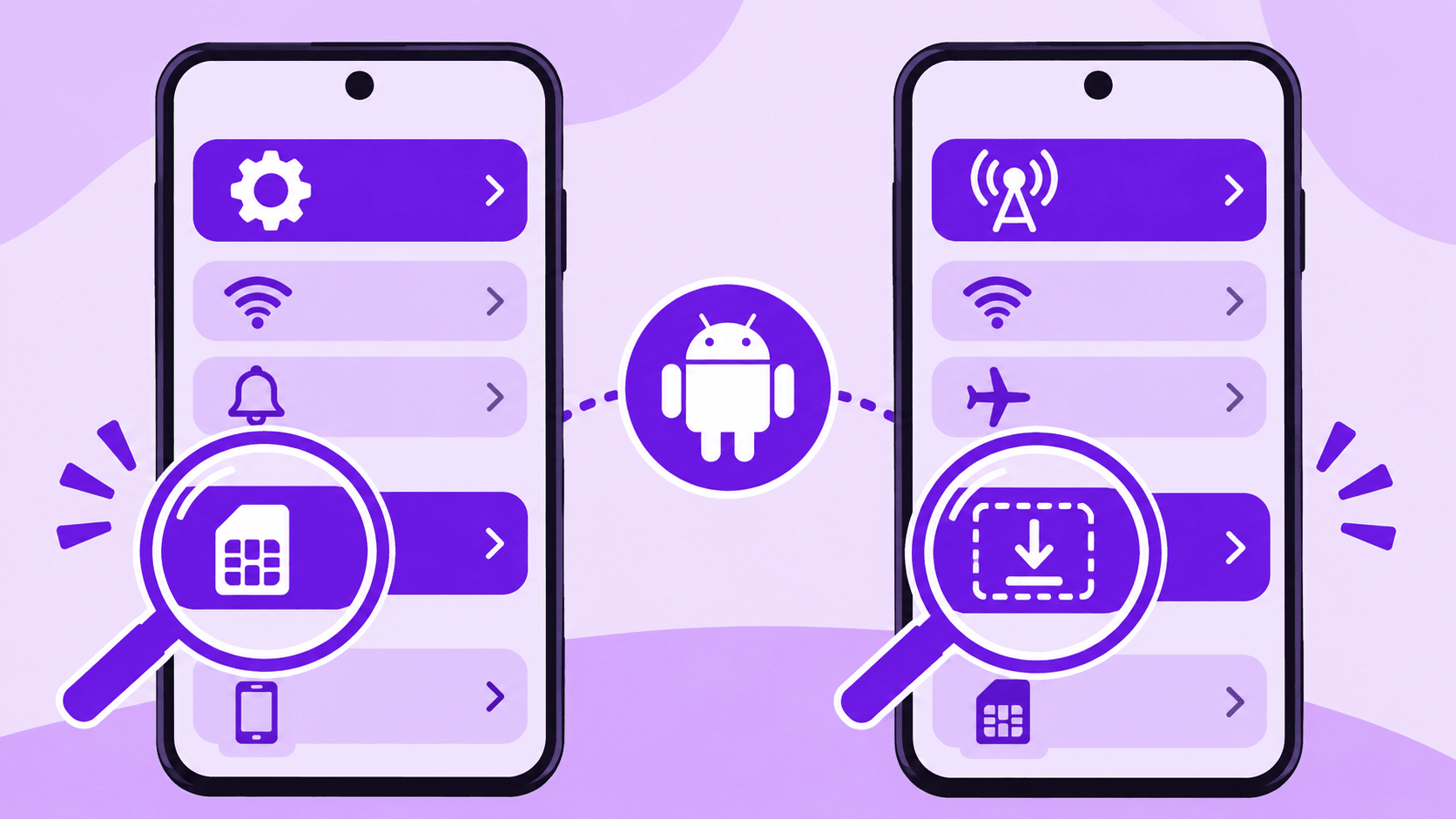
Check the menu on the phone you have. The path differs between Samsung, Pixel, and other Android devices.
Samsung
1. Open Settings.
2. Tap Connections.
3. Open SIM card manager.
4. Look for Add eSIM. Its presence means this phone offers an eSIM setup option.
Google Pixel
1. Open Settings.
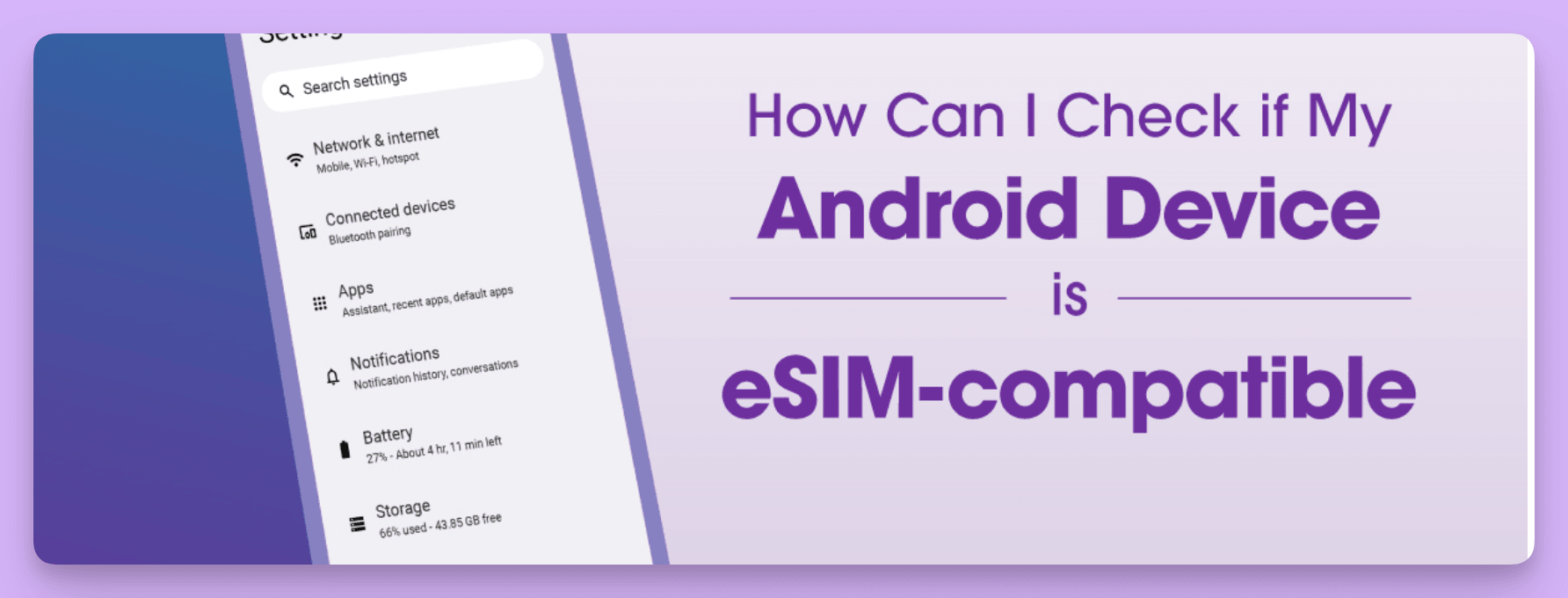
2. Tap Network & internet.
3. Open SIMs and look for Download a new eSIM.
4. Older versions may use labels such as eSIM cards or Download a SIM instead. Check the exact model and carrier support before continuing.
Other Android phones
1. Open Settings and go to About phone.
2. Look for Show EID, or search Settings for EID.
3. If an EID appears, the phone has an eSIM identifier. Also check SIM settings for an option to add an eSIM.
Menu names change with the brand, region, and software version. Even when you find an eSIM option or EID, confirm the carrier lock status and network support. Send the exact model and a settings screenshot to support if the options are missing.
Do not rely on the name of a phone series alone. A model sold in one region can differ from another region's version. Confirm the exact model, carrier lock status, network support, and Wi-Fi Calling availability. If you are unsure, send the model and settings screenshot to support before paying for a code that may be difficult to reuse.
Check whether a dual-SIM phone can enable a further profile without pausing an old line. Keep the number used for contacts and banking available.
Use reliable Wi-Fi, finish any system update that is about to restart the phone, and display your order email's QR code on another screen. If you have only one phone, check whether the eSIM menu can import an image from the gallery. Avoid uploading the code to an unknown QR reader.
3. Install on Pixel or Samsung
On Pixel, choose the new-eSIM download option and follow the scan prompts. On Samsung, open SIM manager, tap Add eSIM, and choose the carrier QR-code option. On other Android phones, find the corresponding download control. Confirm that the phone is adding a new line, and keep Wi-Fi connected throughout the download.
Keep Wi-Fi online during the download. Do not power off, switch networks, or remove the old line midway. When the phone asks to make the US line its data SIM, retain the domestic SIM or defer that choice. Check any automatic data-switch setting before proceeding.
After the new US line appears, give it a recognizable name. Keep the domestic SIM as the normal mobile-data line while using the phone in mainland China. Read any automatic data-switching option carefully. The PayGo plan's included US data does not imply usable cellular data in mainland China.
If your phone already has two active lines, inspect what will happen when a third profile is enabled. Supported stored profiles and simultaneously active lines are different limits. Make sure the number used by your existing contacts stays available.
4. The Line Appears, but Why Are Texts Missing?
LarkSIM's PayGo eSIM product page says support activates the number and funds the first month before sending the QR code. If the profile is visible but no ordinary text arrives, ask support to verify the line before removing it.
In mainland China, connect to Wi-Fi and enable Wi-Fi Calling for the US line where the phone and carrier offer it. Send a normal text from another number to the US number. A visible line without incoming texts can point to an installation, activation, Wi-Fi Calling, or line-setting problem. A regular text that works while one platform's verification code fails points to a different layer, including that platform's own sending rules.
Separate the failure by stage: no US line means installation is incomplete; a line without service may require activation or Wi-Fi Calling checks; ordinary SMS working while one platform code fails points to that platform. Avoid factory resets or repeated profile deletion as a first response.
If the QR code is reported used or the download fails, save the exact message and screenshot. Repeated scans will not repair the carrier's record. Before changing devices, ask how replacement or transfer works. Do not delete the profile on the old phone before the new one receives a regular test text.
5. Why Order Through LarkSIM?
As of November 19, 2026, LarkSIM listed the PayGo eSIM for ¥389 and marked it out of stock. The first purchase includes assisted activation and the first $3 base month. Subsequent base renewals are $3 every 30 days; 12 more cycles amount to $36, before extra usage. Check the refund and number-retention terms before paying. An incompatible phone is a reason to choose a suitable physical SIM route, not to risk a one-time code. Register for a stock notice or consult the US number selection guide if you need an available route.
6. Finish Based on the Screen You See
Deleting an eSIM profile is not the same as cancelling the carrier’s monthly plan. Before switching or selling phones, ask the issuer how to move or reissue the profile; verify ordinary SMS on the new phone before cleaning the old one.
If the device has no EID or eSIM menu, stop before purchasing and check its regional variant and physical-SIM options. If you have the correct code and compatible phone, install on Wi-Fi, verify the US line, set domestic data, enable Wi-Fi Calling, and send a regular test text. Record the renewal date when it arrives. If a step fails, give support the phone model, Android version, order number, and screenshot; avoid resetting or deleting the eSIM during diagnosis.
Real UK +44 number · Ships from China · Chinese setup guides
giffgaff UK physical SIM
Register and manage a real UK mobile number yourself, shipped from local stock in China. The self-service SIM suits people who already have a way to top up; the worry-free SIM includes an official £10 top-up voucher.