Got Your Purple SIM eSIM QR Code? How to Log In to the Ultra Mobile App for the First Time (Latest Guide)
After getting your Purple SIM eSIM QR code, finish setup in seven steps: add the eSIM, get the app, set a password and verify by text, with fixes for common errors.
On this page
- 1. Step 1: Check your email for the eSIM QR code
- 2. Step 2: Scan the QR code to add the eSIM
- 3. Step 3: Download the Ultra Mobile app
- 4. Step 4: First login 1 - enter your number and get the Login Link
- 5. Step 5: First login 2 - open the Login Link in the text message
- 6. Step 6: First login 3 - set your password
- 7. Step 7: First login 4 - finish the text verification
- 8. Q&A 1: Saving the new password shows an error. What now?
- 9. Q&A 2: Why buy the Purple SIM eSIM at LarkSIM
- 10. Q&A 3: Stuck? Check these cases
- 11. After logging in: what to do next
Congratulations, your Purple SIM eSIM is activated. Enjoy your new line!
After support activates the number, the eSIM install QR code is emailed to the address you used when ordering. Once you have the QR code, add the eSIM in your phone settings first, then log in to your account. The account is created automatically when the plan is activated, and you can log in on the web or in the app for the first time without registering again.
To keep things smooth, here is what you need to know and the steps to follow:
Step 1: Check your email for the eSIM QR code
After support activates the number, the eSIM install QR code is emailed to the address you used when ordering. Please install the eSIM and log in to your account within 1 month. Do it soon after the email arrives so you do not forget.
Step 2: Scan the QR code to add the eSIM
Use a compatible, unlocked phone. Joining Ultra Mobile with an eSIM is simple.
Connect the phone to Wi-Fi first, then open Settings. To make scanning easier, open the email on a computer or another phone so the whole QR code is visible.
1) Add the eSIM on an iPhone
Open Settings
→ Tap "Cellular" (or "Mobile Data")
→ Tap "Add eSIM" (or "Add Cellular Plan") → Tap "Use QR Code"
→ Scan the QR code → Tap "Add Cellular Plan"
→ Choose your preferences: default line (primary or secondary), the number for iMessage and FaceTime, and the line for cellular data.
Wait for it to finish. You will see signal bars and the carrier name.
2) Add the eSIM on an Android phone
Open Settings → Network & internet → SIMs, tap +, and choose Download a SIM instead or Add eSIM.
On Samsung phones this is usually under Settings → Connections → SIM manager → Add eSIM.
Follow the prompts to scan the QR code, confirm the download, and turn the line on when it finishes. Menu names vary a little by model and system version.
If the phone still has your home number, you can name the new line "Ultra Mobile" and choose the default line for calls and data as you need.
Step 3: Download the Ultra Mobile app
When you search the app store, search for the official name. The keyword is Ultra Mobile. The app is called Ultra Mobile and the developer is UVNV, Inc. See the picture below:
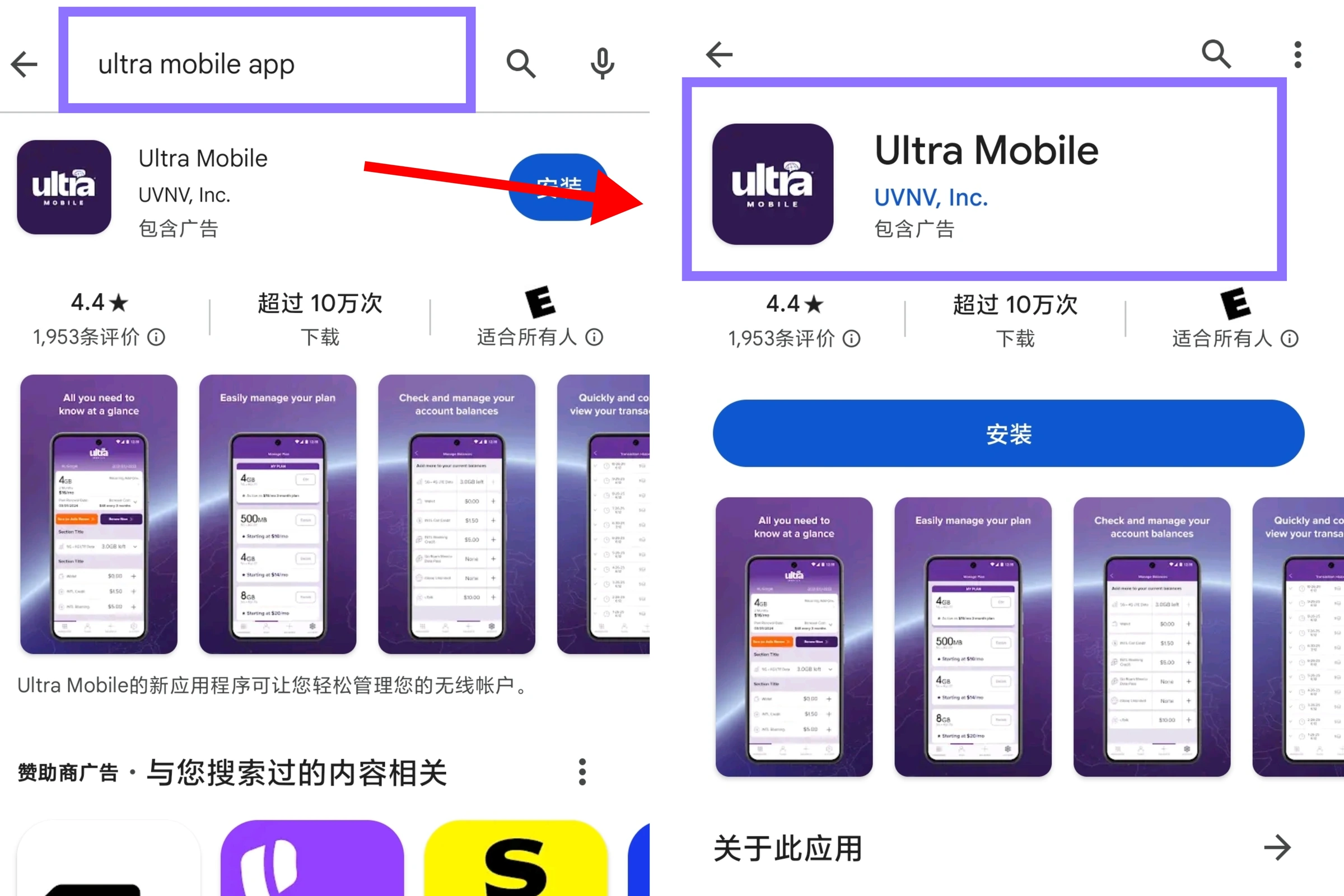
iPhone: tap Ultra Mobile on the App Store, or search for Ultra Mobile in the App Store and check the name, developer and icon before downloading.
Android: tap Ultra Mobile on Google Play and check the name and developer before installing.
After the download, open the app and log in with your own Purple SIM number. For the first login, follow the four steps in the next sections.
Step 4: First login 1 - enter your number and get the Login Link
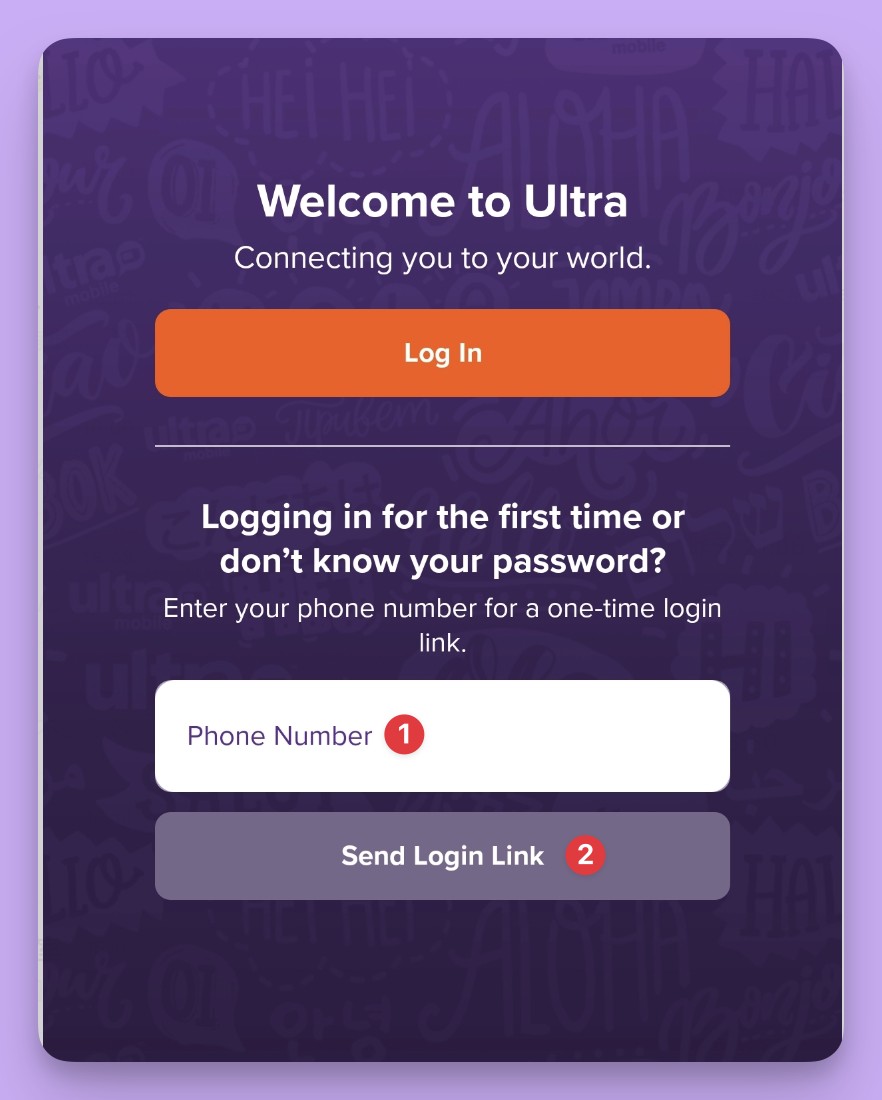
Open the Ultra Mobile app and enter your own Purple SIM number in Phone Number, in the format the box asks for.
Then tap Send Login Link. This button is for first-time logins and forgotten passwords. If the button is grey, the number is probably not complete.
Step 5: First login 2 - open the Login Link in the text message
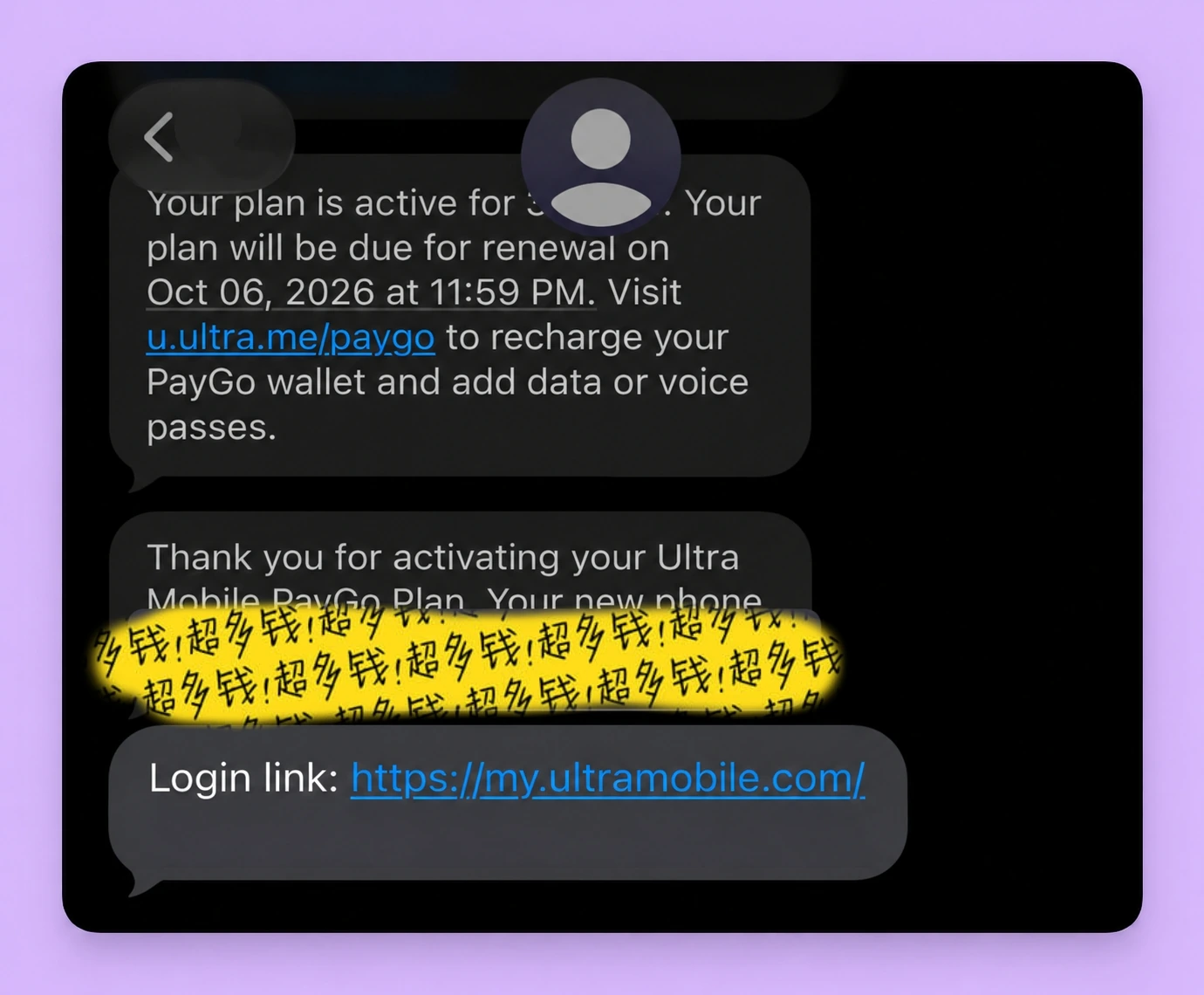
Switch to the Messages app, find the login text you just received, tap the link in it, and open it in your phone's browser.
Note: the link is only for you. Do not forward it to anyone.
Step 6: First login 3 - set your password
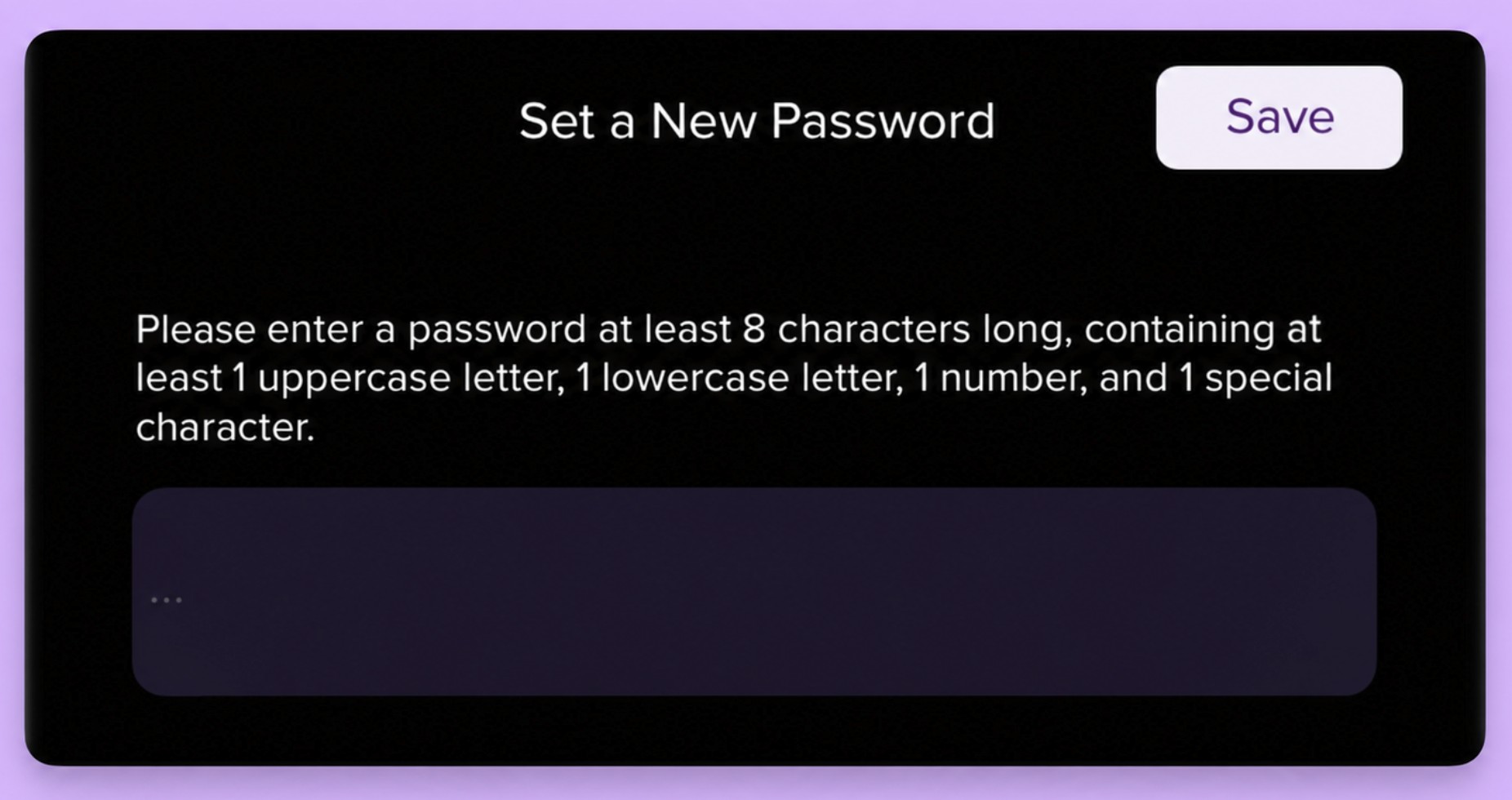
On the Set a New Password page, enter a new password.
The password must be at least 8 characters long and include at least one uppercase letter, one lowercase letter, one number and one special character.
After entering it, tap Save at the top right. Store the new password in a password manager so you have it next time you log in to your Ultra Mobile account.
Step 7: First login 4 - finish the text verification
Ultra Mobile needs to confirm that the person logging in for the first time can receive texts on this number, so it asks you to verify your identity.
Open the Messages app and look at the latest text sent to your Ultra Mobile number.
Go back to the login page and enter the 6-digit code from the text. You can do it all on the same phone. How long the code is valid follows the text or the page.
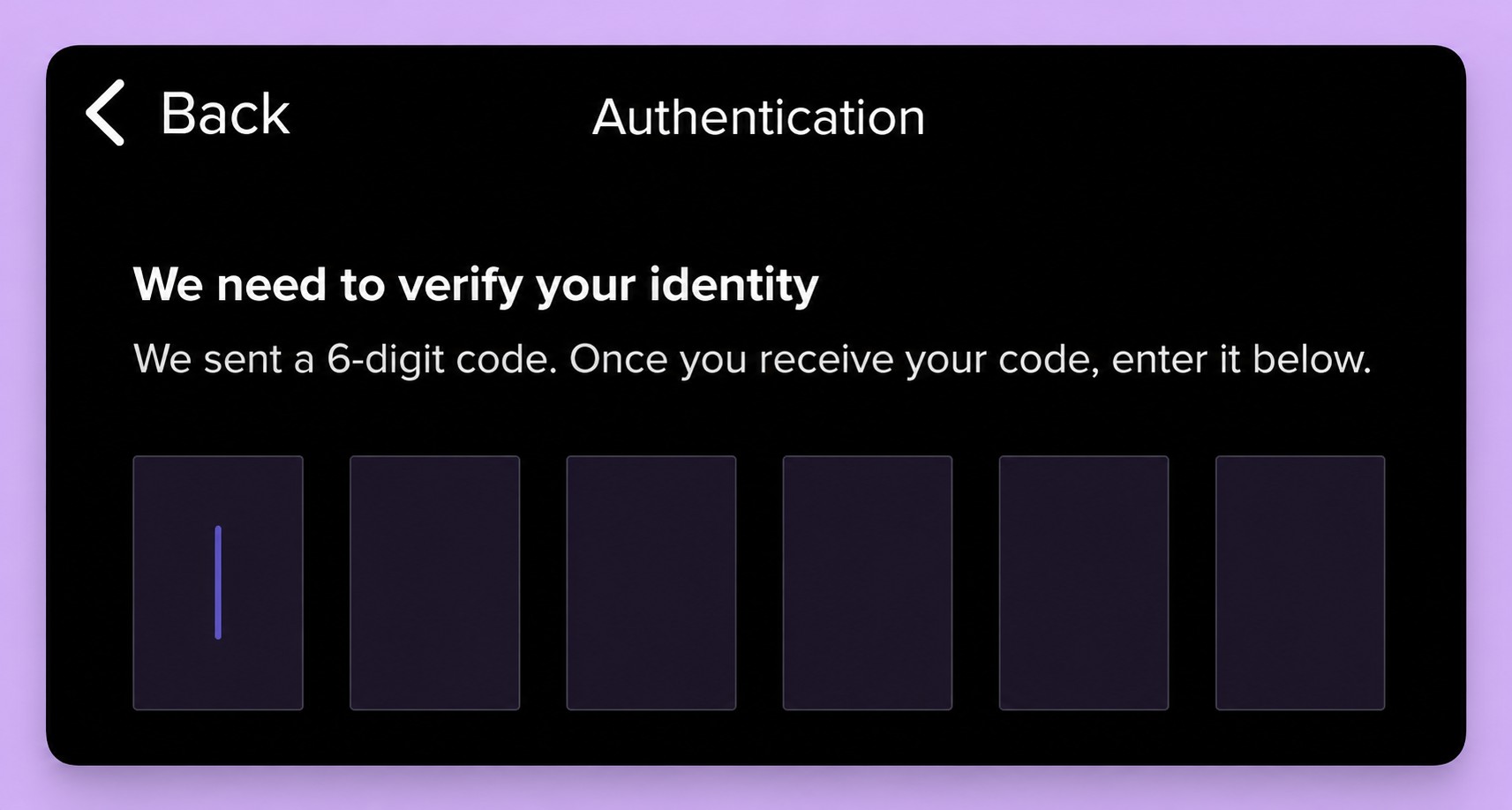
After these four steps, congratulations, you are logged in for the first time and the page goes to the account home by itself.
If you set the password in a browser and the app is still on the welcome page, go back to the app, tap Log In, and sign in with the password you just set.
Setting a password and entering a code are two different things. The password is what you use every time you log in. The code only confirms your identity this once, so do not save the code as a password.
Q&A 1: Saving the new password shows an error. What now?
After you tap Save, what if the page shows "Oh no! Something went wrong."?
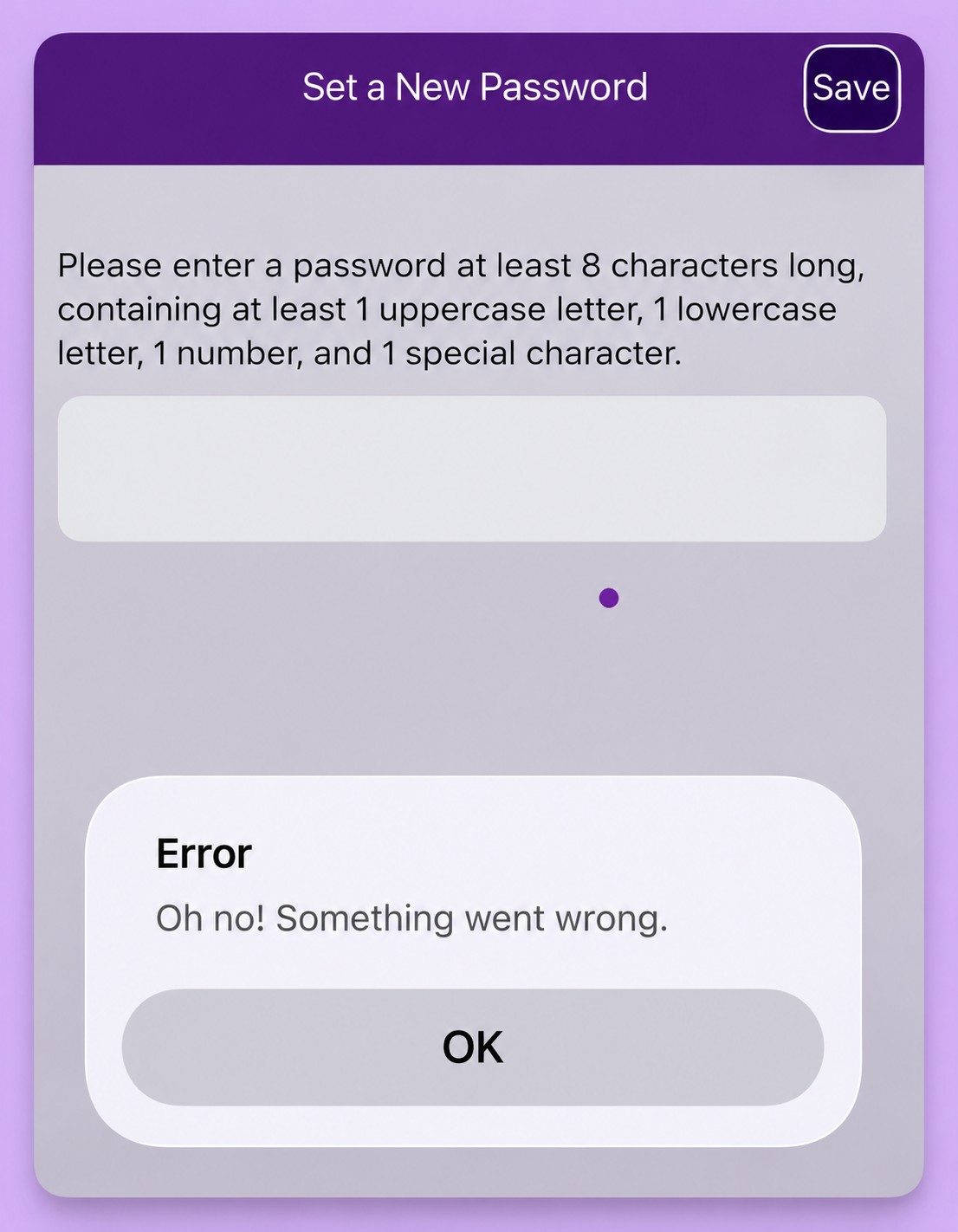
Some users report that after seeing this error they could still log in with the password they had just set.
1. Log in once with the new password first. Tap OK to close the message, go back to the login page, and enter your Ultra Mobile number and the new password. If you get into the account, the new password works and you can keep using it.
2. If the login fails, stop for now. Avoid trying to log in again and again, resetting the password repeatedly, or asking for several codes. Try once more later. If it still fails, keep a screenshot of the error and contact Ultra Mobile's official support to check. Cover your password and codes before you send a screenshot.
Support already topped up the first month's $3 when activating, so the wallet balance is usually small when you first log in. Check the next renewal date. Before that date the wallet needs at least $3, otherwise the plan cannot be charged and the line stops. If 60 days pass from the last charge without renewal, the account and number are cancelled and cannot be recovered.
Q&A 2: Why buy the Purple SIM eSIM at LarkSIM
Opening a Purple SIM yourself on Ultra's site from China needs a US ZIP code and a card that can pay in US dollars, and opening it from abroad is easy to get locked by the carrier's risk checks.
The LarkSIM price includes activation. Support opens the number, tops up the first $3 month, and sends you the QR code. What you receive is a number that already works, and all you do is log in once following this guide and set the password. For renewals later, you can pay by card in the app yourself, or email support to top up for you, so not having a card that pays in dollars will not cost you the number.
Q&A 3: Stuck? Check these cases
You tapped Send Login Link and no text arrives
First check whether the status bar shows Wi-Fi calling. If not, go back and turn Wi-Fi calling on. Then check that the Purple SIM line is switched on and the number is correct. If your iPhone Messages app filters unknown senders, look in the unknown senders list.
The login link does not open, or says it has expired
Go back to the app and tap Send Login Link again, then use the link in the newest text. A link from an older text that has been used once, or left for a long time, no longer works.
The code you entered is invalid
Most likely it has expired, or you entered an old one. Request it again and use the latest code. Do not ask for it several times within a few minutes.
You cannot find the app in the store, or it says it is not available in your region
It is not listed in the China store. Download it with a US Apple ID, or log in with a browser at my.ultramobile.com.
You forgot the password
Go through the four first-login steps again. Send Login Link can also be used to reset the password.
The number normally receives texts, but not Ultra's login text
Send yourself a text first to confirm Wi-Fi calling works. If it does, wait a while before requesting again and do not tap repeatedly. If it still does not arrive, email support with your number and a screenshot.
After logging in: what to do next
By now you should see your number, PayGo plan, wallet balance and next renewal date in the app.
Next, pick one of these three, depending on your situation:
- check_circleTo renew yourself, read the next article, the Purple SIM top-up guide, to learn how to add money to the wallet by card in the app and turn on auto top-up.
- check_circleIf you do not want to link a card, put the next renewal date in your calendar and email support a week before to top up for you.
- check_circleTo avoid mistakes, read the Purple SIM after-activation tips on which uses easily trigger risk checks or a suspension.