Proper Steps to Switch Phones or Move to eSIM on giffgaff Without Getting Cut Off (2026)
Users often look for how to switch phones on giffgaff safely when upgrading handsets or converting to an eSIM. Online rumors occasionally surface on Reddit or forums claiming numbers were disabled during a phone swap. In reality, switching phones and changing eSIMs are standard, fully supported features on giffgaff. Follow the official workflow, and your number will remain safe.
On this page
- 1. 1. Three Key Checks Before Switching
- 2. 2. Scenario 1: Moving a Physical SIM to a New Phone
- 3. 3. Scenario 2: Converting a Physical SIM to an eSIM
- 4. 4. Scenario 3: Moving an Existing eSIM to a New Phone (Crucial)
- 5. 5. Emergency Troubleshooting: What If Something Goes Wrong?
- 6. 6. Why Get Your SIM and Top-ups from LarkSIM?
- 7. 7. Summary
- 8. Frequently Asked Questions
- 9. Official sources
- 10. Related guides
The very few accounts that ran into blocks were caused by just two specific mistakes. First, some users inadvertently selected 'Report lost or stolen' when looking for swap options on the website, which immediately blacklists both the SIM and the previous device IMEI. Second, repeated swap attempts within minutes paired with multiple incorrect 2FA codes trigger automated anti-fraud security lockdowns.
Avoid these two mistakes and use the official giffgaff App, and the transition is seamless. Below is the step-by-step breakdown across three common phone-switch scenarios, along with emergency troubleshooting steps.
If you need a new or spare UK SIM delivered within mainland China, order the giffgaff Self-Setup SIM (¥99) with fast domestic shipping (1–3 days delivery). If you prefer a card bundled with a £10 voucher and setup assistance, choose the giffgaff Full-Service SIM (¥299).
1. Three Key Checks Before Switching
Before you begin, verify these three prerequisites to prevent unexpected obstacles:
1. Device compatibility: Converting to an eSIM requires hardware eSIM capability. Note that mainland China dual-nano-SIM iPhone models do not support eSIM. Overseas iPhones (US, specific HK variants, Japan, etc.) and global Android flagships do. For physical SIM swaps between phones with nano-SIM trays, any unlocked device works.
2. Registered email access: Security verification (2FA) is mandatory during SIM swaps. Verification codes can be sent to your active SIM via SMS or directly to your account's registered email address. As long as your inbox is accessible, you can safely complete the migration even if your old handset has no signal.
3. Maintenance hours: The giffgaff SIM replacement and eSIM activation window operates daily between 04:30 and 21:30 UK time. Avoid late-night UK hours when backend maintenance occurs, and perform your switch in the afternoon or evening.
2. Scenario 1: Moving a Physical SIM to a New Phone
Switching a physical nano-SIM between smartphones is the most straightforward path:
- 1
Eject and insert
Power down or eject the SIM tray on your old phone, transfer the giffgaff nano-SIM into the new handset's SIM tray. - 2
Enable cellular and roaming
Go to Settings -> Cellular / Mobile Data, select the giffgaff line, and make sure 'Data Roaming' is toggled on (receiving SMS abroad is free, but roaming must be active to register on partner networks). - 3
Register on the local network
Wait 1 to 2 minutes while your device registers on roaming partner networks (such as China Mobile or China Unicom). If it stays on 'No Service', change Network Selection from Automatic to Manual, pick China Mobile or China Unicom, and signal should connect promptly.
3. Scenario 2: Converting a Physical SIM to an eSIM
If you currently use a physical SIM and want to free up your physical card tray on an eSIM-capable phone, convert directly inside the official giffgaff App.
- 1
Install and log in
Download the official giffgaff App on your eSIM-compatible smartphone, ensure you are connected to stable Wi-Fi, and log in to your account. - 2
Open SIM replacement
Tap Account in the bottom tab bar -> SIM -> Replace my SIM -> Switch to a new eSIM. - 3
Verify your identity
Request a security code. You can choose delivery by SMS to your existing SIM or to your registered email address. Enter the 6-digit code to proceed. - 4
Download eSIM profile
The app automatically launches your phone's native cellular profile setup. Follow the on-screen prompts to add the mobile plan without manual QR scanning. - 5
Wait for network sync
Activation typically completes within a few minutes up to half an hour (officially up to 24 hours).
4. Scenario 3: Moving an Existing eSIM to a New Phone (Crucial)
If you already run a giffgaff eSIM and purchased a new smartphone, remember this cardinal rule:
- 1
Operate on the new phone
Keep your old phone untouched. Connect your new phone to Wi-Fi, install the giffgaff App, and sign in to your account. - 2
Initiate eSIM replacement
In the new phone's app, navigate to Account -> SIM -> Replace my SIM -> Switch to a new eSIM. - 3
Receive code via email
When prompted for 2FA, choose 'Send code via email'. Open your mailbox, retrieve the verification code, and enter it into the app. - 4
Install new eSIM profile
The new smartphone will download and install its dedicated eSIM profile automatically. - 5
Verify signal before deleting old profile
Only after the new phone displays cellular signal and receives test SMS messages should you go to your old phone's Settings -> Cellular and remove the expired profile.
5. Emergency Troubleshooting: What If Something Goes Wrong?
If you encounter an accidental deletion or a delayed connection, here is how to resolve it safely:
1. Accidentally deleted old eSIM and cannot receive SMS code? Don't worry. giffgaff supports dual-channel verification. Simply select 'Send code via email' on the authentication screen to complete the setup on your new device using email 2FA.
2. New eSIM shows 'No Service'? - Wait for network synchronization: Writing the profile across operator routing tables takes 10 to 30 minutes. Toggle Airplane Mode or restart your phone. - Select network manually: Go to Settings -> Cellular -> select giffgaff line -> Network Selection, toggle off Automatic, and pick China Mobile or China Unicom. - Confirm Data Roaming is enabled.
3. Error 'SIM swap not available at this time'? This means you reached the nightly UK maintenance window (21:30 to 04:30 UK time). Wait until the UK morning (afternoon in Asia) and try again.
4. Failsafe backup: SIM Swap via spare physical SIM If an extreme glitch corrupts your digital profile, you always have a 100% reliable backup: have an unactivated giffgaff blank SIM on hand, log into giffgaff.com on a browser, navigate to Profile and settings -> Replace my SIM -> Activate your SIM, enter the 6-digit activation code on the card pack, and your number, credit, and plan will instantly migrate to the physical SIM.
6. Why Get Your SIM and Top-ups from LarkSIM?
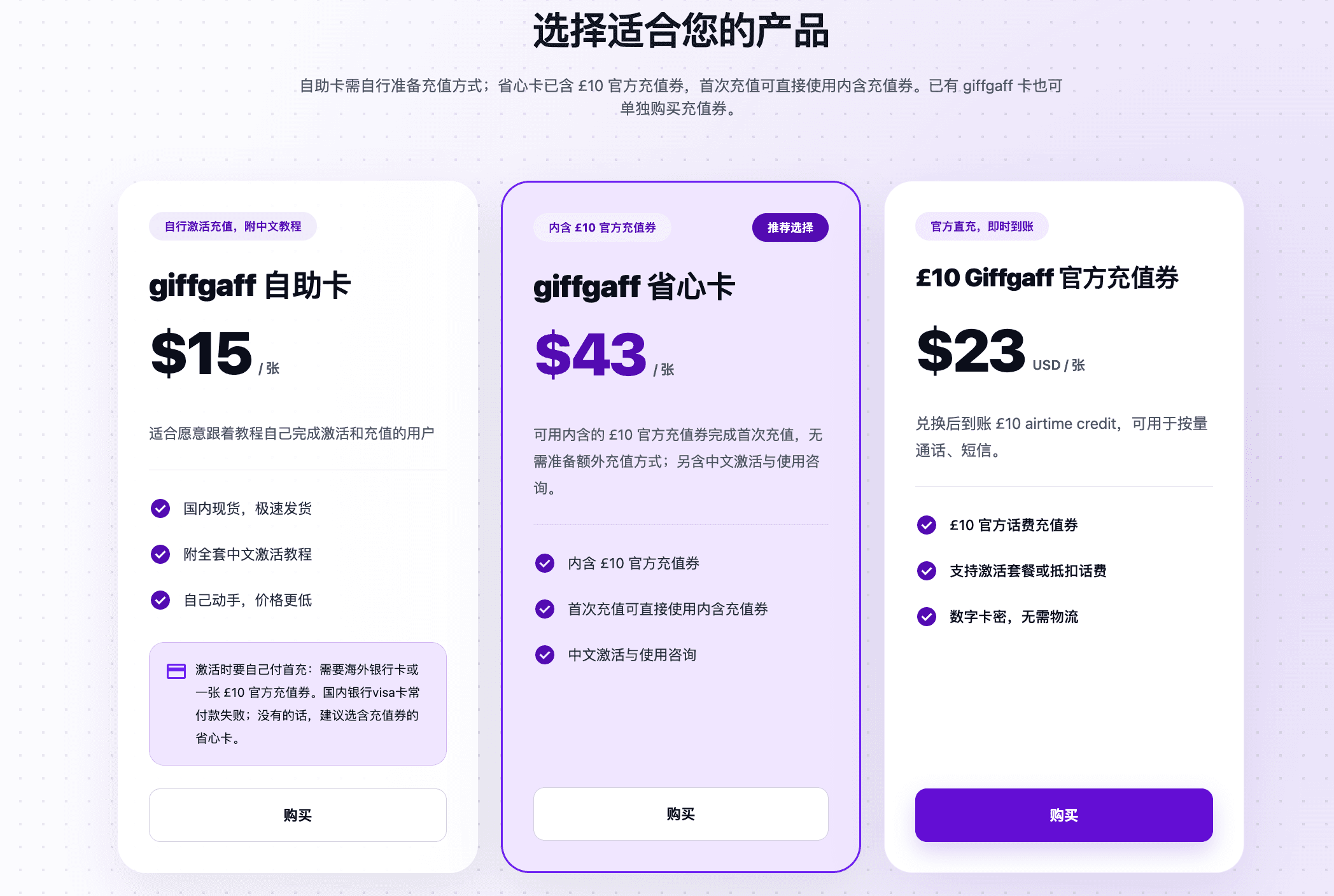
Official giffgaff physical cards only ship to UK addresses, and overseas checkout often fails with Chinese bank cards. LarkSIM provides a complete domestic solution:
- check_circleSelf-setup option: giffgaff Self-Setup SIM ships within 24 hours with domestic delivery (1–3 days) and complete illustrated setup tutorials.
- check_circleHassle-free setup: giffgaff Full-Service SIM includes a £10 official top-up voucher and personalized activation guidance, eliminating overseas payment obstacles.
- check_circleRoutine retention top-ups: £10 official giffgaff top-up voucher delivers digital voucher codes instantly for quick redemption on the website or via phone.
7. Summary
giffgaff's SIM replacement process is thoroughly engineered and reliable. Remember two basic principles: use the official 'Replace my SIM' path, and use email 2FA whenever changing devices.
SIM cards purchased from LarkSIM include comprehensive setup guidance and responsive customer support, so you never have to navigate roaming or device migrations alone. Ready to get started? Order the giffgaff Self-Setup SIM or giffgaff Full-Service SIM today.
Frequently Asked Questions
Will my credit and active plan carry over when changing phones?expand_more
Why does the app say SIM swap is currently unavailable?expand_more
What if my old phone broke and I cannot receive the 2FA SMS?expand_more
官方来源 / Official sources
Real UK +44 number · Ships from China · Chinese setup guides
giffgaff UK physical SIM
Register and manage a real UK mobile number yourself, shipped from local stock in China. The self-service SIM suits people who already have a way to top up; the worry-free SIM includes an official £10 top-up voucher.